

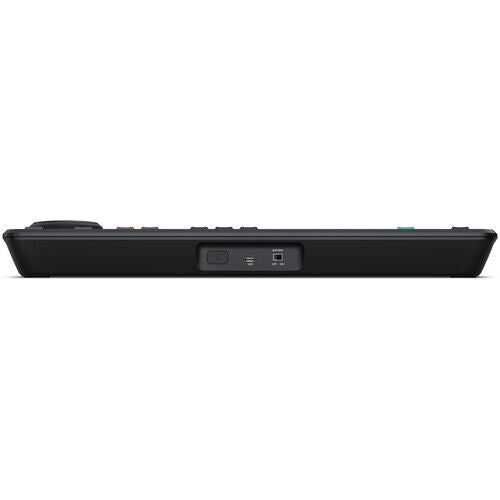

Blackmagic Design DaVinci Resolve Replay Editor
Items Included
- Blackmagic Design DaVinci Resolve Replay Editor
- Limited 1-Year Manufacturer Warranty
Key Features
- Switch from Input View to Playback Media
- Review Other Camera Angles
- Point-of-Interest Button
- Upload to Social Media
The Blackmagic Design DaVinci Resolve Replay Editor combines features for both replay and multicam editing in a single hardware control panel for live sports and news-cutting applications. Multiple keys toggle between inputs, set Point-of-Interests, and enable an auto stinger, among other functions. The panel connects to your preexisting network via Bluetooth 5.1 LE technology. A large internal battery keeps the panel going for long production days and can be turned on and off with an onboard switch. Charge the battery or use a separately available power supply via the USB-C port.
View Live Input
Change the viewer to a direct input from video hardware such as a switcher multiview.
Set Point-of-Interest
To mark an event during your broadcast, press the POI button or the space bar when your desired input is selected. This will set the POI time from the input timecode, switch to the source view, and cue the POI.
Go to End
Press "Go to End" if you get distracted while editing your selected clip and miss an event. This takes you to the end of the recently recorded media and allows you to scroll back and see what happened.
Find the Best Angle
DaVinci Resolve can play all of your camera angles simultaneously into a multiview configuration so you can use your Replay Editor and find the best angle for your replay.
Auto Stinger
Enable an auto stinger before you start a replay to automatically roll a stinger before or after rolling your clip. You can select different stingers using the title keys.
Set Transitions
When rolling a replay, use the cut and dissolve buttons to select the type of transition you want. Each time you select a new camera you will see your transition of choice.
Start Replay
The run button starts a replay and enables the key channel output so the switcher will display the playback and start the auto stinger. It also starts logging when adding the replay to the timeline.
Set Playback Speed
Execute live speed changes with the slider control to slow playback speed on both the viewer and the timeline. When you slow all the way to stop the search dial lets you move around the paused area.
Switch Between Cameras
Use the camera buttons to cut between up to 16 sources when playing to air. The viewer will continue to show a multiview and the selected camera will output to the video output.
Sequence Shots
If you press a time key and a cam button while playing to air, DaVinci Resolve will jump playback to the selected time before the POI.
Stop Replay
The dump button stops replay and adds the shots to the timeline if one is selected. It can also run the auto stinger.
New Timelines
The new timeline key will save the current timeline and open a new one with a similar name. This allows you to efficiently create a new timeline for each replay clip.
Blackmagic Design DaVinci Resolve Replay Edit... Specs
| Controls | 1x Dial |
| Display | No |
| OS Compatibility | macOS 14.3 or Later |
Inputs / Outputs
| USB I/O | 1x USB-C Female Input |
Power
| Power Source | Battery |
| Power Consumption | 6 W |
Physical
| Operating Conditions | 32 to 104°F / 0 to 40°C |
| Storage Conditions | -4 to 140°F / -20 to 60°C |
| Dimensions | 14.97 x 8.53 x 1.74" / 38.02 x 21.67 x 4.42 cm |
| Weight | 3.57 lb / 1.62 kg |
Couldn't load pickup availability
Pickup currently unavailable at Shop Front
Pairs well with
In stock! Ships within 1-2 business days.
90-day risk-free trial
2-Year Warranty
Complimentary shipping & returns
If you have any questions, you are always welcome to contact us. We'll get back to you as soon as possible, within 24 hours on weekdays.
-
Shipping Information
Use this text to answer questions in as much detail as possible for your customers.
-
Customer Support
Use this text to answer questions in as much detail as possible for your customers.
-
FAQ’s
Use this text to answer questions in as much detail as possible for your customers.
-
Contact Us
Use this text to answer questions in as much detail as possible for your customers.
Video slide 1
Video slide 2
Video slide 3
Video slide 4
Collage
Share information about your brand with your customers. Describe a product, share announcements, or welcome customers to your store.
Image with text
Share information about your brand with your customers. Describe a product, share announcements, or welcome customers to your store.
Free shipping and returns
Image with text
Share information about your brand with your customers. Describe a product, share announcements, or welcome customers to your store.
Product details
Collapsible row 1
Use this text to share information about your brand with your customers. Describe a product, share announcements, or welcome customers to your store.
Collapsible row 2
Use this text to share information about your brand with your customers. Describe a product, share announcements, or welcome customers to your store.
Collapsible row 3
Use this text to share information about your brand with your customers. Describe a product, share announcements, or welcome customers to your store.
Collapsible row 4
Use this text to share information about your brand with your customers. Describe a product, share announcements, or welcome customers to your store.
FAQs
Please read our FAQs page to find out more.
Frequently asked question
Use this text to answer questions in as much detail as possible for your customers.
Frequently asked question
Use this text to answer questions in as much detail as possible for your customers.
Frequently asked question
Use this text to answer questions in as much detail as possible for your customers.
Frequently asked question
Use this text to answer questions in as much detail as possible for your customers.
Frequently asked question
Use this text to answer questions in as much detail as possible for your customers.